How to Type in Chinese
Originally published
A common question is how to type in Chinese. A pinyin keyboard lets you enter pronunciation with Latin letters, then choose the Chinese characters you mean. You can start composing short messages without first learning to handwrite every character. Typing and handwriting are different skills; neither replaces learning pronunciation and recognizing the right words.
Typing pinyin is often described as 打拼音, dǎ pīnyīn. With a Chinese pinyin input method active, try nihao and choose 你好, nǐ hǎo, meaning “hello.” Some keyboards also predict from initials such as nh, but the candidates and shortcuts depend on the input method. Always check what was selected.
This guide covers two things: setting up a Chinese keyboard and using it for your first short text. The original article was published on October 6, 2015. Device references and practice recommendations below were reviewed on November 2, 2026.
Set up a Chinese keyboard
Look for a Chinese input language and a Pinyin layout. Simplified and traditional describe the characters you want to produce, not two different spoken languages. Choose the script appropriate to your reading material or recipient. Menu names and available layouts vary by device, system version and display language, so use the manufacturer's current instructions.
- iPhone or iPad: use the keyboard settings to add a Chinese keyboard and select an available Pinyin layout. Switch to it before typing. See Apple's keyboard guide.
- Android with Gboard: open Gboard's settings, add Chinese under Languages, then choose an available layout. Adding a keyboard language does not change the phone's display language. Holding the space bar lets you switch languages. See Google's language guide.
- Mac: add a Chinese input source in Keyboard settings and choose an appropriate Pinyin source. Use the input menu to change sources. See Apple's input-source guide.
- Windows: add the appropriate Chinese keyboard in language settings. Microsoft Pinyin is the simplified-Chinese input method discussed in Microsoft's current guide. Pinyin candidates can be selected with their number or Space; Enter has a different action. Other input methods can behave differently.
The old Windows 7/8 links in this archived article are no longer the recommended setup path. If your menus differ, follow the instructions for your actual system rather than changing unrelated settings.
Write your first Chinese message
Open a private note or an ordinary text document first. Select the Chinese pinyin keyboard, enter nihao, and choose 你好. Check that you got Chinese characters rather than the Latin letters “nihao.” You do not need to send a message or create an account to test this.
Try a short phrase you already understand. Several Chinese words can share a pronunciation, so a plausible prediction can still be wrong. Read the candidate list and check the finished sentence. Depending on the keyboard and context, entering a phrase may give better suggestions than selecting each character individually; it is not a guarantee.
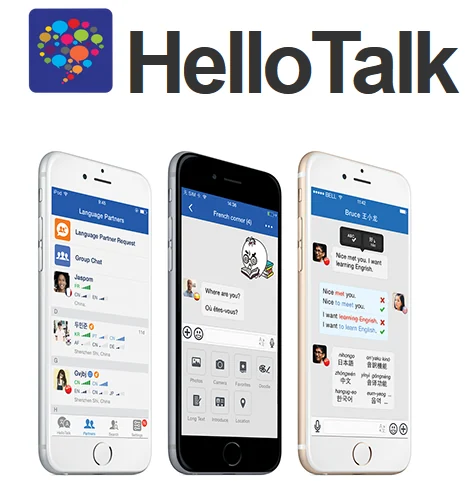
The image above is an illustration retained from the original article, not evidence of a current app interface. If you want to practice with another person, HelloTalk currently presents itself as a language-exchange service with text conversation and free practice. Check its current features, terms and privacy information before signing up. This is not a promise that every feature is free or that someone will reply.
The original article also recommended signing up for Lang-8. We have not verified a current signup service, so that old recommendation is not a current instruction. On a computer, you can still practice in a local document or use a service you have independently checked. Introduce yourself with words you know; if you adapt an example from a textbook, change it to say something true about yourself.
Use the keyboard regularly enough to learn when its predictions help and when you must choose a different character. Start with a short, checked sentence. The aim is accurate communication, not a claimed typing speed or guaranteed language-learning result.